Fun Print is a photo printing app for compatible mini thermal printers. You can use it to select a picture from your iPhone or Android phone, crop the image, preview the result, and make a compact physical print over Bluetooth.
These printers use heat-sensitive paper rather than ink. Photos normally print in black and white, and the final detail depends on the original image, paper, print density, and printer model. Expect a small thermal keepsake, journal image, or sticker—not a color photo-lab print.
Before You Print a Photo from Your Phone
Check these items first:
- Your printer model is listed in our Fun Print mini printer guides.
- The printer is charged, switched on, and loaded with compatible thermal paper.
- Bluetooth is enabled on the phone.
- Fun Print has permission to use Bluetooth and access the photos you choose.
- The printer is connected inside the Fun Print app, not only in the phone’s Bluetooth settings.
If you have not connected the printer yet, start with the first-time setup guide.
How to Print Photos from iPhone or Android
1. Open the Photo Printing Tool
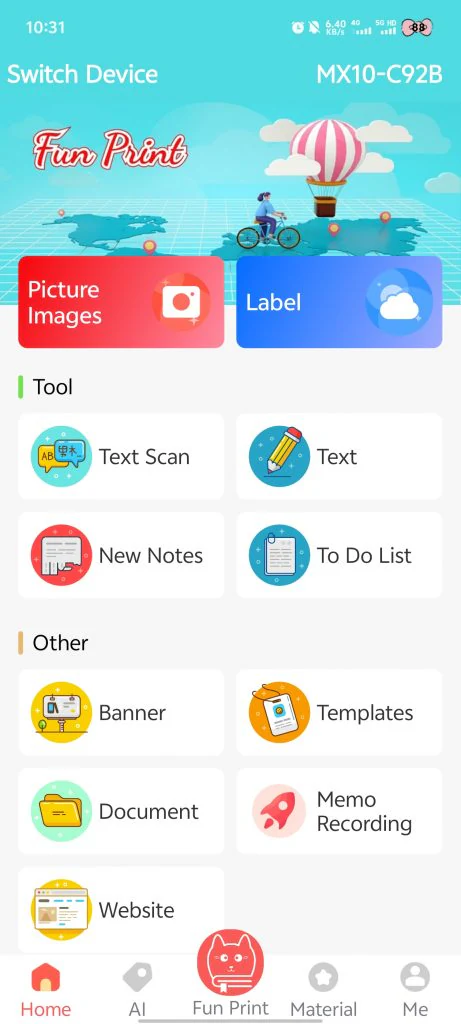
Open Fun Print and look for Picture Print, Photo Images, or the equivalent photo option on the home screen. The wording can vary slightly by app version.
2. Choose a Photo
Select an existing picture from the phone’s photo library, or take a new photo if that option is available. If the library is empty, review the app’s photo permission in iOS or Android settings and allow access to the image you want to print.
3. Crop for the Paper Width
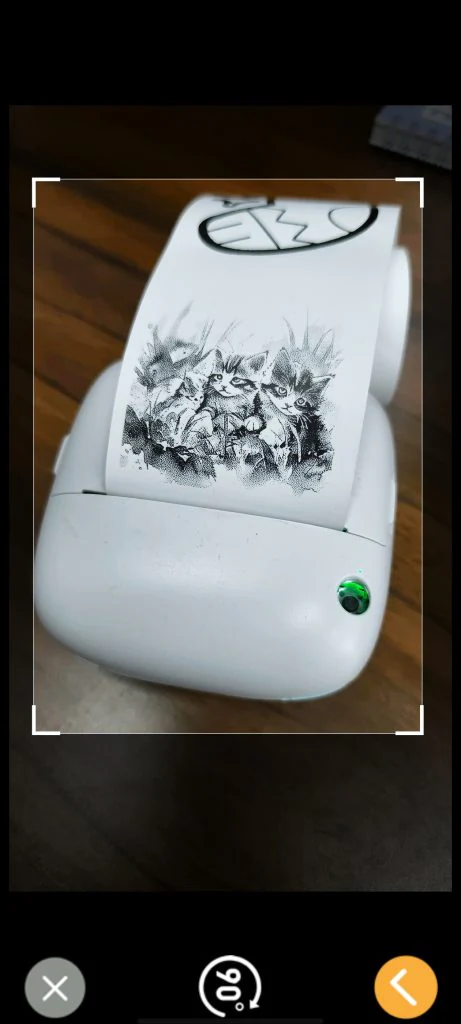
Move and scale the image so the important subject stays inside the preview. A tight crop usually works better than a wide scene because mini printer paper has limited width.
4. Review the Black-and-White Preview
Color photos are converted into light and dark thermal dots. Before printing:
- Increase contrast when the subject blends into the background.
- Brighten very dark faces or shadows.
- Avoid photographs with large areas of similar mid-tone color.
- Try an outline or image mode if your app version provides one.
5. Choose Print Settings
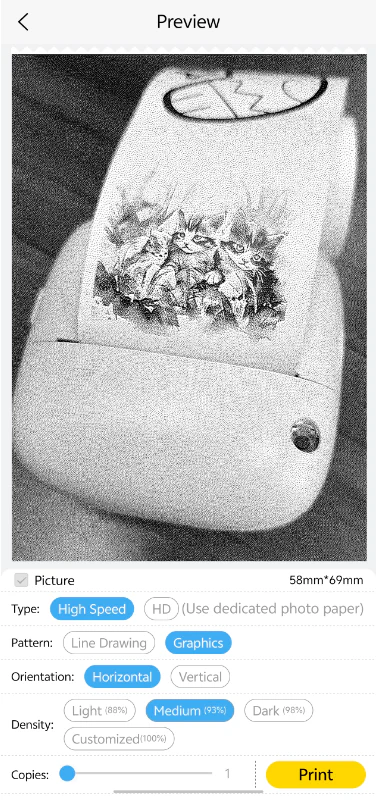
The available controls depend on the connected printer and app version. Common options include orientation, image size, print density, quantity, and an image or outline mode. Use a medium density for the first attempt; very high density can merge fine details into dark blocks.
6. Preview and Print
Confirm that the preview fits the selected paper, then tap Print. Keep the phone near the printer until the job finishes, and do not pull the paper while it is moving.
How to Get Clearer Mini Photo Prints
Choose a Simple, High-Contrast Photo
Portraits, pets, objects, line art, and simple backgrounds usually translate better to monochrome thermal paper than crowded scenes. A sharp source image helps, but the printer cannot reproduce the same tonal range as a phone screen.
Match Density to the Image
- If a print is pale, raise density one step and check that the paper is facing the correct direction.
- If dark areas lose detail, reduce density or brighten the photo before printing.
- If the result has vertical gaps or repeated lines, clean the print area according to the printer manual and try a fresh section of paper.
Use the Right Thermal Paper
Standard thermal paper is suitable for mini photos, notes, and journals. Adhesive thermal paper is required when you want to turn photos into stickers. Confirm the roll width and paper type for your exact printer model before loading it.
See how to turn phone photos into stickers for the complete paper and printing workflow.
Common Photo Printing Problems
My Photos Do Not Appear in Fun Print
Open the phone’s privacy settings and allow Fun Print to access the selected photos. On newer iOS versions, the app may have access to only a limited set of images until you add more.
The Printer Does Not Appear
Check that another printer app is not still connected in the background. Close the other app, restart Bluetooth, and connect again from inside Fun Print. The Bluetooth troubleshooting guide covers additional checks.
The Photo Is Blank or Very Faint
Thermal paper prints on only one coated side. Reload the roll in the opposite direction if a test print is blank. If it is merely faint, increase density slightly and try compatible fresh paper.
The Photo Is Cropped
Return to the preview, reduce the image scale, and keep faces or text away from the edges. Select the correct paper size if the app offers more than one width.
Frequently Asked Questions
Can Fun Print print color photos?
Compatible pocket thermal printers generally produce black-and-white output because they use heat-sensitive paper and no color ink. The image can appear in color on your phone while the physical print is monochrome.
Can I print pictures directly from my phone?
Yes. Choose a photo inside the Fun Print app, adjust the crop and density, preview it, and send it to a connected compatible printer over Bluetooth.
Can I print mini photos instantly?
Once the app and printer are connected, a small photo can be prepared and sent without a computer. Printing speed varies by image size, density, connection, and printer model.
Do I need photo paper?
Use thermal paper that matches the printer’s required width and type. Traditional inkjet photo paper is not designed for a direct thermal mini printer.