The CYEELVES S09XME533X is a compact digital printer designed specifically for young users who want to explore creativity and capture moments in a fun, tactile way. This guide will walk you through the essential setup steps, key features, and important safety considerations.
Download Original Manual (PDF)
Product Overview
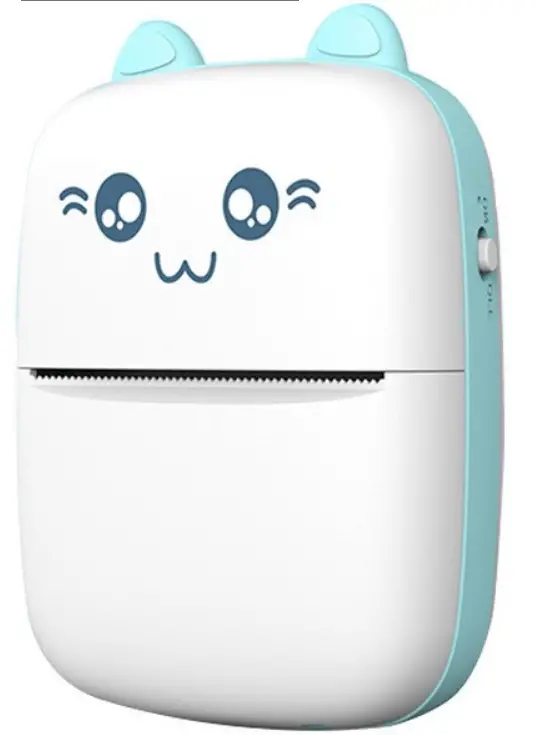
This delightful pocket-sized printer combines ease of use with engaging design, making it perfect for children’s creative projects. The device uses thermal printing technology, which means no ink cartridges are required—just thermal paper and you’re ready to print!
Interface and Controls
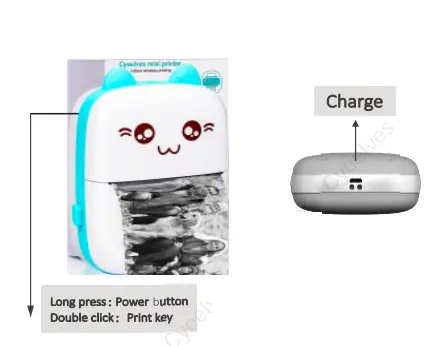
Before getting started, familiarize yourself with the printer’s main components and button layout. The interface is intuitive and designed for easy navigation even for younger users.
Important: On first use, ensure the battery is fully charged before operating the device. Use only the provided charger and unplug it once charging is complete.
Getting Connected: Mobile App Setup
The FunPrint printer pairs with your smartphone via Bluetooth to handle all printing operations. Here’s how to set it up:
Step 1: Download the App
Search for “Fun Print” in your device’s app store:
- iPhone users: Download from the Apple App Store
- Android users: Search for Fun Print on Google Play Store
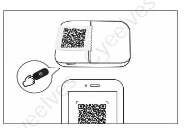
You can also scan the QR code provided with your printer to jump directly to the download page.
Step 2: Enable Bluetooth
Enable Bluetooth on your mobile device in Settings.
Step 3: Connect the Printer
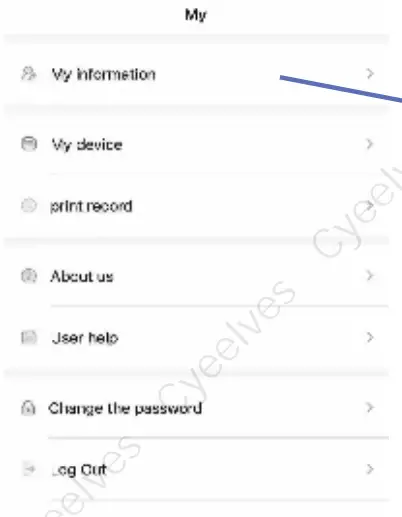
- Open the Fun Print app
- Navigate to the “My Device” section
- Select your FunPrint printer from the list of available Bluetooth devices
- Once connected, you’ll have access to all printing features and settings
Paper Replacement Instructions
Your printer uses thermal paper rolls, which are simple to replace when empty. Follow these steps carefully:
Step 1: Remove the Old Paper
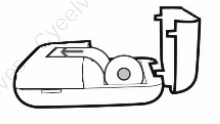
Open the paper compartment and carefully remove the empty paper roll.
Step 2: Load the New Paper
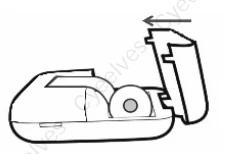
Insert the new thermal paper roll in the direction shown in the illustration. Important: Ensure the paper is inserted straight and not at an angle. The paper should extend approximately 2 cm above the paper bin so that the automatic paper feed mechanism can grip and advance it properly during printing.
Step 3: Close and Test
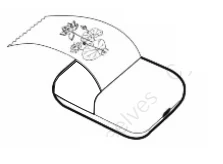
Close the paper compartment securely. The printer will automatically detect and feed the paper. Your printer is now ready to use!
Adjusting Print Settings
Print Darkness Control
You can customize the intensity of your prints through the app’s settings. Access the “Concentration” or “Darkness” control to choose from three levels:
- Light: For subtle, delicate prints
- Medium: Standard print darkness (recommended for most uses)
- Dark: For bold, high-contrast images
Experiment with these settings to find the perfect balance for your photos and designs.
Essential Safety Guidelines
Battery and Charging Safety
- Use the correct charger: Only use the 5V charger provided with your printer. Other chargers may damage the device.
- Handle the charging cable gently: Insert and remove the cable with care to prevent port damage.
- Unplug when complete: Always disconnect the charger once charging is finished.
- Avoid hazardous environments: Don’t charge or use the printer in high-temperature, high-humidity, dusty, or smoky areas (including bathrooms and saunas).
- Battery care:
- Never disassemble, impact, crush, or expose the battery to fire
- Do not use the printer if the battery shows signs of severe swelling
- Never submerge the battery in water
- Always dispose of old batteries according to local regulations
Operational Safety
- Printer head protection: The print head becomes hot during operation—never touch it directly to avoid burns.
- Paper cutter caution: The tear blade is sharp. Handle with care and keep fingers clear when tearing paper.
- Charging precautions: Improper charging practices can damage the print head, affecting print quality and device longevity.
Maintenance Tips
- Keep the printer away from extreme heat and humidity
- Store the device in a cool, dry location
- Clean the exterior regularly with a soft, dry cloth
- Avoid exposing the printer to dust or debris
- Handle the device gently to prevent internal damage
Troubleshooting
If you experience issues:
- Printer not detected: Ensure Bluetooth is enabled and the app is running
- Poor print quality: Check the print darkness setting and ensure the paper is properly loaded
- Charging issues: Verify you’re using the correct 5V charger and check the charging port for debris
For additional support, consult the comprehensive user manual that came with your device or contact customer support.
Enjoy capturing and printing your creative moments with your FunPrint portable mini printer!